 21sys
21sysMacOS-style Quicklook on KDE Plasma 6
I’m very used to and happy with the Quicklook feature of MacOS: Select a file in the Finder File Browser, press the space bar and you will see a preview of the file’s contents (i.e. image or pdf preview).
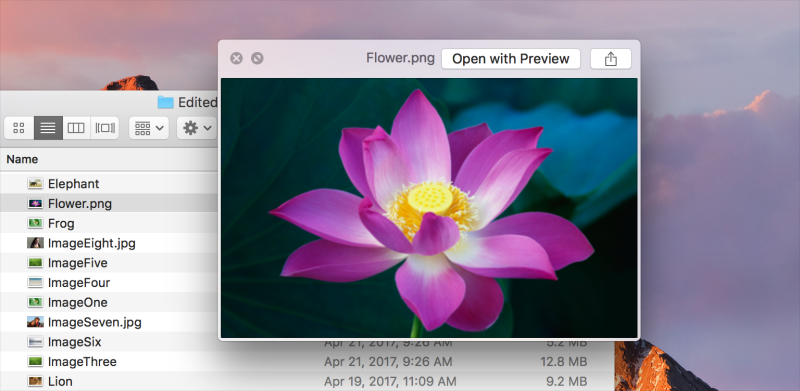
I usually set up a Quicklook-like workaround on every OS I use (for example with QL-Win on Windows).
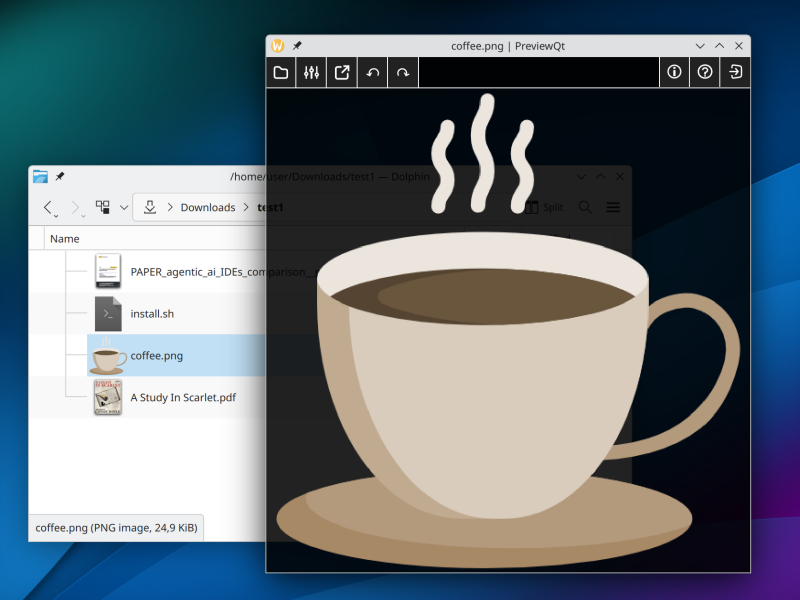
This blog post is about finding a Quicklook-like solution for the Dolphin file browser of the KDE Plasma 6 desktop environment on Asahi Fedora Linux.
Choosing the right tool for the job: PreviewQT
First, let’s find a GUI preview tool that supports the common file types (images, pdf, text, etc). I’m choosing the PreviewQT for this. The flatpak variant has the arm64 build I need for Asahi Linux, so I’m installing it with flatpak install flathub org.previewqt.PreviewQt. (The flatpak is also available for x86_64 of course, so this works identically on other distros and archs).
Adding Preview to the File Browser right-click menu
Next, I´d like to add an easy way to preview a file from KDE Plasma 6’s Dolphin file browser.
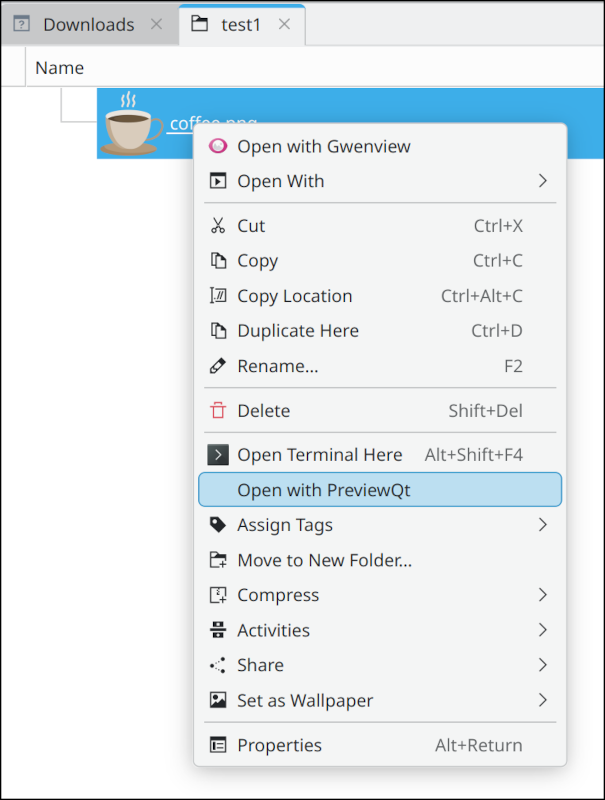
The obvious way is to create an entry in the file right-click menu. A so called servicemenu.
We can do that by creating a servicemenu config:
In ~/.local/share/kio/servicemenus let’s create a file previewqt.desktop with:
[Desktop Entry]
Type=Service
ServiceTypes=KonqPopupMenu/Plugin
MimeType=all/allfiles;
Actions=openWithPreviewQt;
X-KDE-Priority=TopLevel

[Desktop Action openWithPreviewQt]
Name=Open with PreviewQt
Icon=previewqt
Exec=flatpak run org.previewqt.PreviewQt %f
And after activating it with kbuildsycoca6 we now can preview any file from the Dolphin right-click menu.
Adding a keyboard shortcut (aka the spacebar)
»Where do astronauts hang out? The space bar!«
~ (someone on Reddit)
Now, wouldn’it be nice that instead of clicking a menu item, if we had a keyboard shortcut (like the spacebar one on MacOS)?
Unfortunately, it doesn’t seem to be possible to assign a keyboard shortcut to a servicemenu item and at a first look I couldn’t find another way to programatically get the currently selected file in Dolphin in a shell script. (If someone knows a workaround, please post a comment).
However, when you copy a file in Dolphin to the clipboard (via CTRL+C or right-click -> copy), the path to the file ends up in the clipboard - and we can read the clipboard from a script.
So, let’s create a quick bash script that reads the clipboard, extracts the file path and passes it to the PreviewQT app. We can then assign a shortcut to this script.
To access the clipboard with wayland/kwin, we can use wl-copy / wl-paste, the wayland equivalent of MacOS’s pbcopy / pbpaste. To get it:
dnf install wl-clipboard
I’m creating a script quickview-handler.sh somewhere on my system (here in: /opt/me/bin):
#!/bin/bash

# Get file:// url from clipboard and remove trailing newline
file_url=$(wl-paste | tr -d '\r\n')

# decode url with python
file_path=$(python3 -c "import urllib.parse; u=urllib.parse.urlparse('$file_url'); print(urllib.parse.unquote(u.path))")

echo $file_path

# Exit silently if empty
[[ -z "$file_path" ]] && exit 0

# Exit silently if not a file
[ -f "$file_path" ] || exit 0

# Run PreviewQt with the file
flatpak run org.previewqt.PreviewQt "$file_path" &

exit 0
After chmod a+rx quickview-handler.sh we can now create a shortcut for it. In System Settings -> Shortcuts choose add and in the path field enter /opt/me/bin/quickview-handler.sh. Then set a keyboard shortcut, I am choosing CTRL+SPACE (as just SPACE is already taken by another useful Dolphin feature).
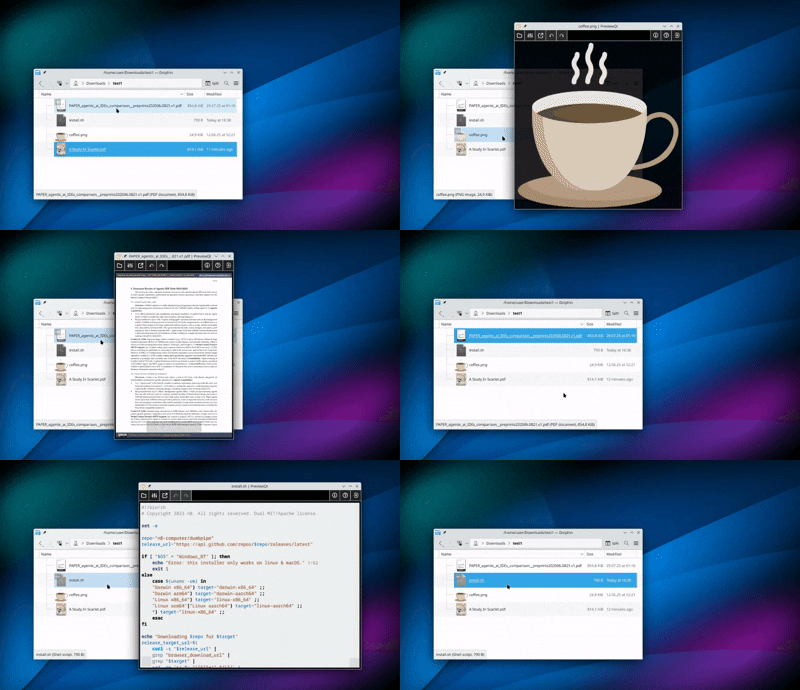
Done! Now we can select a file in Dolphin, press CTRL+C and then CTRL+SPACE to get the “quickview” preview of the file. To close the preview window, press ESC.
Not as elegant as on MacOS, but close enough for the muscle memory.
#Asahi-Linux #Quicklook #Fedora #Flatpak #Kde-Plasma #Previewqt #Kde-Plasma-Servicemenu #Qt #Kde-Plasma-Shortcuts
Discuss this article on GitHub Discussions.